VPN on Android (2026): Always-on VPN, Battery, 5G Leaks and Stable Reconnects
Android is where good VPN marketing meets bad real-life defaults. The app says "connected", but the phone still sleeps aggressively, 5G changes radio state, captive portals interfere with DNS, and one careless split-tunnelling rule can leave part of your traffic outside the tunnel. That is why people who browse on the train, travel often, or use mobile banking on public Wi-Fi should care about more than just the big blue connect button.
This guide explains what really matters on Android in 2026: how the protocol affects heat and battery, why kill switch logic is only useful if the OS respects it, why DNS leak protection matters more on mobile than most people think, and when Android should behave more like a locked travel phone than a normal daily driver. If you already read our broader VPN basics or want the desktop version later, compare it with VPN on Windows and VPN on iOS.
Use diagnostic tools before trusting the Android VPN icon
A green VPN icon is not enough on Android. Test the tunnel after switching from Wi-Fi to 5G, after waking the phone, and after updating the VPN app. Those are the moments where DNS, IPv6 or app-specific bypass rules become visible.
Check live service status before blaming Android VPN
This reference panel stays here for layout consistency and to confirm that our live feed is healthy before you work through the mobile fixes below.
Which Android VPN protocol saves battery?
Android Battery & Performance Lab
Compare what different protocols usually feel like on a modern Android phone. This simulator is for decision-making, not a hardware benchmark.
If you spend most of the day on Android, the protocol choice matters more than many people admit. WireGuard and NordLynx usually feel lighter because they reconnect quickly when you move between Wi-Fi and 5G. That same roaming behaviour is why they are a stronger default for people who commute, use hotspot-heavy workflows, or depend on messaging apps that hate tunnel drops. OpenVPN still has a role on stubborn hotel or school networks, but you pay for that flexibility with heat, battery drain, and sometimes slower wake-from-sleep recovery.
The practical rule is simple: use the lightest protocol that survives your network. If you mostly browse from home, WireGuard is usually enough. If your office guest Wi-Fi or a travel network resists UDP, switch to TCP-based fallback and test again. For people who jump between public Wi-Fi, 5G, and personal hotspots all day, protocol changes are often the difference between "my VPN is reliable" and "my VPN keeps turning into decoration".
| Protocol | Battery | Reconnect speed | Best fit | Watch out for |
|---|---|---|---|---|
| WireGuard | Low drain | Very fast | 5G, travel, daily browsing | Some restrictive networks block UDP |
| NordLynx | Low drain | Very fast | Fast everyday Android use | Still depends on provider routing quality |
| IKEv2 | Moderate | Fast | Good fallback on mobile switching | App support varies by provider |
| OpenVPN UDP | Higher | Moderate | Compatibility | Warmer CPU, rougher battery behaviour |
| OpenVPN TCP | Highest | Slowest | Stubborn blocked networks | Heavy on battery, slower web feel |
How to stop Android VPN leaks during reconnects
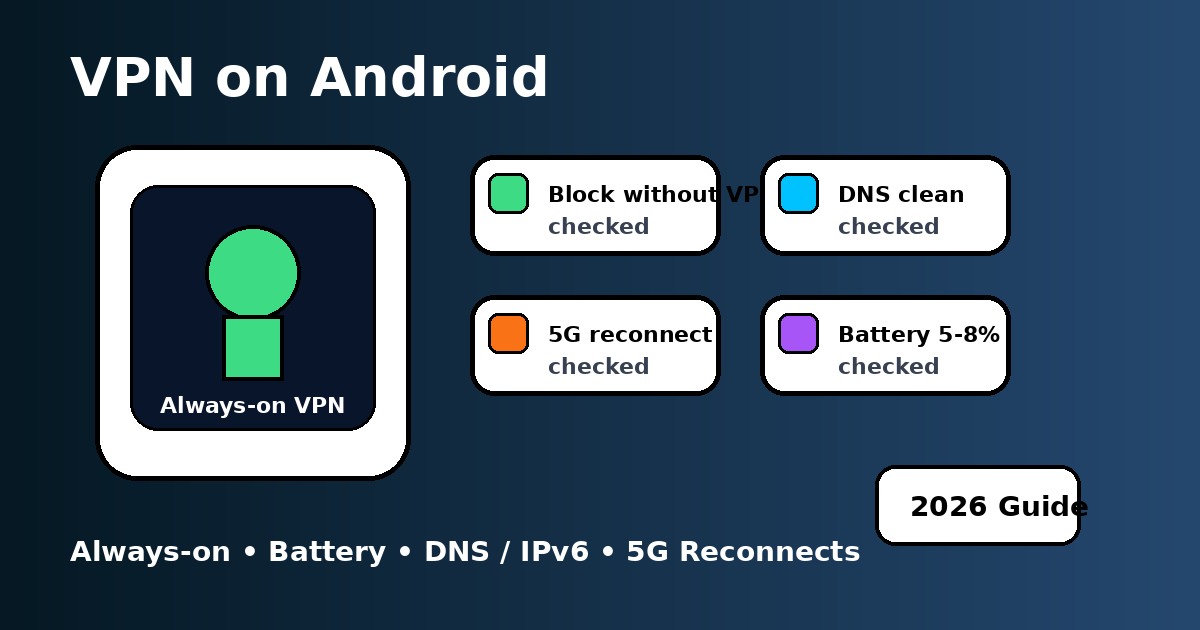
Android loves to help, and that is not always good for privacy. Battery optimisation, app sleeping, "adaptive" network switching, and captive portal checks can all create moments where a VPN reconnects a little too slowly. That is why a clean Android setup starts with two toggles in system settings: Always-on VPN and Block connections without VPN. Without them, the tunnel may be present most of the time, but not all of the time.
The same logic matters for remote work on a phone, especially if you switch between home Wi-Fi, office guest Wi-Fi, and mobile data. If your VPN dies silently in the background, a work chat, browser session, or file sync can go out over the normal network before you notice. That is also why people who care about privacy on Android should not ignore the more boring pages like VPN troubleshooting or VPN error codes - the leak is often created by a boring reconnect failure, not some dramatic hack.
How to configure Android split tunnelling safely
A lot of Android users think split tunnelling is just a trick to make streaming smoother. It is more useful than that. It lets you keep your browser, chat apps, and risky public Wi-Fi traffic inside the tunnel while letting a stubborn banking app or local mapping service connect directly. That matters when your bank hates unexpected foreign IPs, when local transport apps dislike VPN routing, or when a work profile uses stricter network policies than your personal apps. The point is control, not just speed.
The safest habit is to be conservative: keep more apps inside the tunnel by default, then move individual apps out only when you have a specific reason. That is the same mindset behind VPN vs proxy comparisons and even VPN vs firewall advice - broad protection first, exceptions second. If you want to use Android as a travel companion, not just a toy, you need clear rules for what is allowed to bypass your tunnel.
Android 15 Private Space, work profiles and VPN behaviour
Android 15 did not magically solve VPN privacy, but it did make policy boundaries more visible. Private Space, work profiles, and app-by-app isolation can change how people think about one device doing many jobs. In practice, the safest assumption is that the VPN app protects the device at the network level, while profile rules change which apps can run, talk, or stay alive in the background. You usually do not need a second VPN instance just because you use Private Space, but you do need to confirm that the apps you care about are not bypassing your main tunnel through permissions, exclusions, or profile-specific restrictions.
This is one reason Android power users often pair a main VPN app with disciplined settings rather than improvising with random "privacy booster" apps. The clean setup is still the best setup: one trusted VPN, one tested protocol, leak checks after changes, and a short list of justified bypass rules. If you also use a laptop, it is worth comparing Android's behaviour with Windows or even site-to-site VPN concepts, because mobile problems often come from the same routing basics - just hidden behind touch-friendly menus.
| Setting | Why it matters | Best default | When to revisit it |
|---|---|---|---|
| Always-on VPN | Keeps the tunnel persistent | Enabled | After OS updates or app reinstall |
| Block without VPN | Stops reconnect-window leaks | Enabled | If an app loses access unexpectedly |
| Battery optimisation | Can kill the VPN in the background | Disabled for VPN app | After app cache resets or vendor updates |
| Split tunnelling | Controls which apps bypass protection | Minimal use | When banking or local apps misbehave |
| Protocol | Affects speed, heat, roaming, and DPI resistance | WireGuard / NordLynx first | Switch if a network blocks UDP |
How to fix Android VPN disconnects in real life
The pattern is usually boring. A phone joins weak public Wi-Fi, Android detects a captive portal, the VPN reconnects, the app is still battery-optimised, and a few packets go out before the tunnel is fully back. Or you move from Wi-Fi to 5G while navigation is open, then your browser keeps a stale route. Or a hotel blocks UDP and your shiny "fast protocol" suddenly turns into a slow failure loop. These are not exotic edge cases. They are normal Android life.
That is why you should treat this page as part of a cluster, not a one-off article. If Android keeps acting up, move next to VPN troubleshooting. If you still see odd IPs or resolvers, check DNS leak protection. If the question becomes "do I need this at all?", step back to why use a VPN or free VPN vs paid VPN. Good privacy is rarely one setting. It is a stack.
Which VPN setup should you choose on Android?
If you want the simple answer, pick a provider with reliable Android support, modern protocols, and clear controls for always-on behaviour. NordVPN is a strong all-rounder if you want quick reconnects and a polished Android app. Surfshark is attractive if you want flexibility and strong value across many devices. Proton VPN is a good fit if you care a lot about privacy posture and can accept a little more hands-on testing when a network is awkward.
The more important point is this: Android rewards clean setups. A paid VPN with bad settings can still leak. A good Android setup with the right protocol, tested DNS, disciplined split tunnelling, and battery rules often feels dramatically better within five minutes. That is the difference between a phone that is "connected" and a phone that is actually protected.
PAA: Android VPN questions people ask
Updated on May 22, 2026. We refresh this guide as Android network behaviour changes and as modern protocols evolve.
✓ Leak Test referenced for IP / DNS / IPv6 / WebRTC checks
✓ Speed Test referenced for Wi-Fi vs 5G speed checks
✓ Streaming VPN Diagnostic referenced for Android app service symptoms
✓ Android Always-on VPN, Block connections without VPN and Private Space sections reviewed against Android documentation
Verification date: