VPN Speed Test (2026): measure, compare & improve real VPN performance
That is why this guide treats speed like network forensics, not marketing. If a provider advertises a 1 Gbps tunnel but your 4K video still stalls, the problem is often distance, queueing, or protocol overhead rather than headline bandwidth. A fast VPN keeps more than just throughput intact: it keeps ping low, jitter stable, and loaded latency under control when your line is under stress.
There are three truths advanced users learn quickly. First, encryption has a tax. Second, bufferbloat can ruin a connection that looks fine on paper. Third, path quality matters. A route that detours through Frankfurt can beat a "closer" path if your ISP has poor peering on the direct path. That is why this article pairs measurements with explanations and shows how to validate them against protocol choice, WireGuard-class performance, and real fixes from our VPN troubleshooting guide.
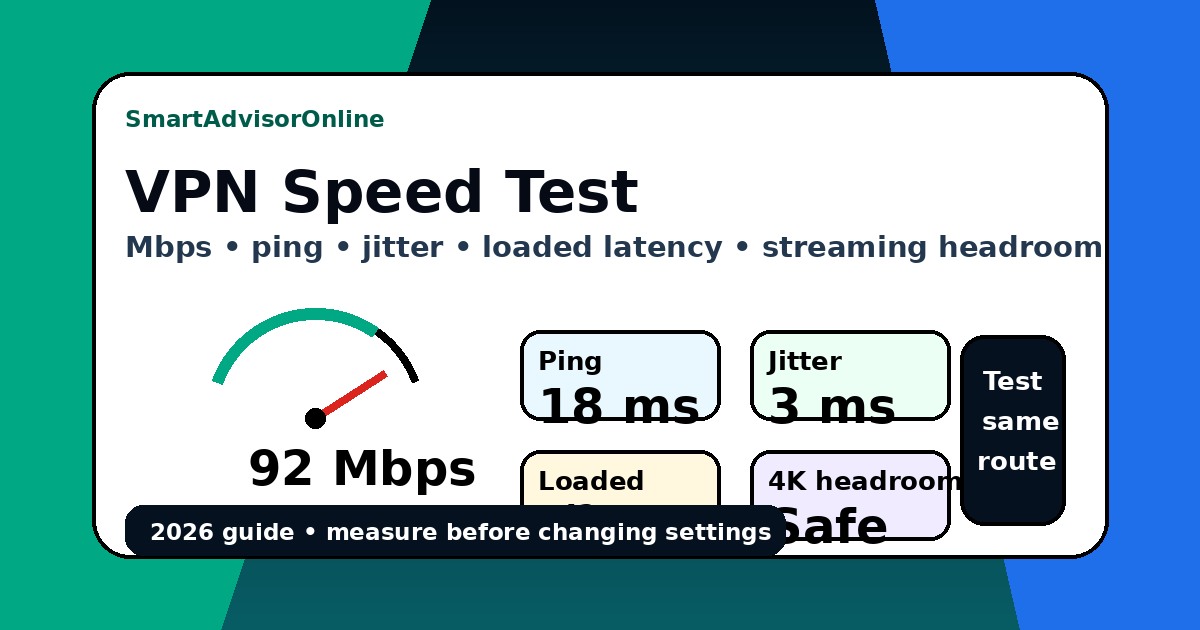
Start here: the simple VPN speed test method
| Check | Why it matters | Good first action |
|---|---|---|
| Baseline speed | Shows what your line can do without VPN overhead. | Run the same test with VPN off. |
| VPN speed | Shows tunnel overhead and route quality. | Test a nearby server and a distant server. |
| Ping and jitter | Explains gaming, calls and live-stream stability. | Prefer the route with steadier latency, not only higher Mbps. |
| Loaded latency | Shows whether the line becomes sluggish under load. | Retest while download/upload is active. |
| Streaming headroom | Shows whether 4K has enough margin after VPN overhead. | Keep more than the minimum bitrate requirement. |
A VPN can preserve 90% of throughput and still feel bad if jitter spikes under load. That is why our methodology always checks nearby and long-distance servers separately.
Widget 1 - The VPN Speed Anatomy
Start with your clean line speed, then add the losses that match your setup. This is not a fake benchmark. It is a visual explanation of why a modern nearby server can feel fast while an overloaded long-distance route feels broken. Users who also care about privacy should compare this with our VPN for anonymity guide, because the "fastest" path is not always the most private one.
Widget 2 - Protocol Race: WireGuard vs OpenVPN vs IKEv2
Protocol choice changes both speed and how your device behaves under stress. Encryption design matters, but so does how efficiently the protocol moves packets. WireGuard-class tunnels usually launch fastest and waste the least CPU time. IKEv2 is often the calm, stable option on mobile networks. OpenVPN is still useful when compatibility matters, but its heavier overhead usually shows up first on lower-power devices.
| Factor | WireGuard | IKEv2 | OpenVPN |
|---|---|---|---|
| Typical speed retention | 90-95% | 80-90% | 60-75% |
| Ping increase | Low (+2 to +5 ms) | Low to moderate | Moderate (+10 to +20 ms) |
| Battery / CPU impact | Low | Moderate | High |
| Best fit | 4K gaming, 8K video, daily use | Phones, travel, handoff stability | Compatibility, legacy networks |
Widget 3 - The Ping & Distance Heatmap
For gamers and live callers, distance is not the full story, but it is the first story. The minimum possible ping is limited by physics. Light in fiber is fast, not magic. Then routers, peering points, and queueing add more delay. That is why London to Frankfurt can be totally fine for gaming, while London to Singapore is a terrible idea for competitive play even on a premium VPN.
Frankfurt is excellent for London-based gaming, live calls, and 4K streaming. The route is short enough that routing quality matters more than pure geography.
Widget 4 - The 4K / 8K Stream Buffer Predictor
Most streaming complaints are not about headline speed. They are about whether you keep enough clean headroom after protocol overhead, queueing, and background traffic. Netflix 4K commonly wants around 25 Mbps. YouTube 4K can fluctuate. Max and live sports streams punish jitter and loaded latency. This predictor gives you a fast sanity check before you blame the provider.
Buffer-free for 4K: Yes ✓
You have enough throughput headroom for sustained playback. If buffering still appears, check jitter and loaded latency instead of only chasing more Mbps.
A 30 Mbps tunnel can pass a 25 Mbps stream on paper and still choke during action scenes if queueing spikes or if another device starts syncing in the background. That is why the best setup keeps headroom.
The Performance Benchmark Matrix 2026
| Factor | WireGuard (Modern) | OpenVPN (Classic) | Smart DNS (Speed) |
|---|---|---|---|
| Speed retention | 90-95% | 60-75% | ~99% |
| Ping increase | Minimal (+2 ms to +5 ms) | Moderate (+15 ms typical) | None |
| Battery impact | Low / efficient | High / heavy | Zero |
| Best for | 4K gaming / 8K video | Restrictive networks | Smart TV / consoles |
| Privacy level | Full tunnel | Full tunnel | No tunnel |
Latest VPN speed benchmarks (March 2026)
Fresh lab context matters because VPN speed is not static. Protocol updates, exit node load, ISP peering, and stream bitrate demands all move the goalposts. The numbers below are not a promise for every line, but they show what a healthy modern setup should feel like when routing is clean and the device is not the bottleneck.
| Route | Protocol | Expected retention | Loaded latency target | What it should feel like |
|---|---|---|---|---|
| London -> Frankfurt | WireGuard / NordLynx | 90-95% | below 20 ms added | Excellent for 4K streaming, fast downloads, and most gaming |
| Berlin -> Amsterdam | WireGuard / IKEv2 | 88-94% | below 18 ms added | Very stable for calls, remote work, and regional streaming |
| Warsaw -> Stockholm | WireGuard | 85-92% | below 22 ms added | Good for daily use if peering is healthy |
| London -> Ashburn | WireGuard / IKEv2 | 75-88% | moderate increase | Fine for US streaming, weaker for competitive gaming |
| London -> Tokyo | WireGuard | 60-78% | high by physics | Acceptable for access and downloads, not ideal for fast-response tasks |
How to run a perfect VPN speed test
A good test does not stop at one screenshot. Run the same route twice: once in a quiet hour and once in the evening. That reveals congestion and peering problems that a single benchmark hides.
What VPN speed drop is acceptable?
| Speed loss vs baseline | Meaning | Most likely cause | Action |
|---|---|---|---|
| 5-10% | Excellent | Modern protocol + short route | Keep testing only if latency feels wrong |
| 10-25% | Normal | Healthy encryption overhead or moderate distance | Usually acceptable for daily use |
| 25-40% | Warning zone | Server load, poor peering, older protocol, weak device | Change city, change protocol, retest under load |
| 40%+ | Problem | Bad routing, overloaded exit, MTU issues, background traffic | Diagnose the path before blaming the provider globally |
Common mistakes that ruin a VPN speed test
- Testing over weak Wi-Fi instead of a clean wired or strong 5 GHz / 6 GHz connection.
- Leaving cloud sync, updates, or game downloads active in the background.
- Comparing a nearby no-VPN baseline with a far-away VPN route to another continent.
- Judging the whole provider from one overloaded city or one bad evening test.
- Ignoring loaded latency, jitter, and packet loss because the download number looks good.
Use real tools before changing VPN settings
A speed number by itself does not explain the cause. First check baseline speed. Then check VPN speed. Then verify IP, DNS, IPv6 and WebRTC signals. If the issue appears only on streaming platforms, check live service status and run a streaming diagnostic before switching servers repeatedly.
Do not guess where your Mbps disappeared. Use the tool hub to compare your baseline, nearest VPN route, and long-distance route in one workflow. It is the fastest way to see whether the problem is the VPN, your ISP path, Wi-Fi, or device overhead.
Best use: run a quick check first, then a deep test when a stream buffers, a game spikes, or a work VPN feels slower than expected.
Fastest regions for VPN speed testing
If your goal is clean performance rather than a specific content region, start with routes known for strong peering and dense infrastructure. In Europe, Germany and the Netherlands are often the safest first pick. In the US, Virginia and New York tend to behave well for East Coast traffic. In Asia, Tokyo and Singapore are useful reference hubs, but distance penalties become obvious much faster.
How to improve a slow VPN without guessing
The fastest fixes are almost always boring. Start with the closest server that meets your goal. If you need a different country, test multiple cities inside that country. Next, switch to a modern protocol. If your CPU is old or your router is underpowered, OpenVPN can become the real bottleneck long before your ISP line is saturated. That is also why we recommend checking your setup path in How VPN Works before changing five things at once.
For calls and gaming, prioritize jitter and loaded latency over perfect Mbps. For movie streaming, prioritize clean headroom and resolver consistency. For very long-distance routes, accept that physics wins. A better provider can reduce waste, but it cannot make Tokyo behave like Amsterdam from a laptop in London.
Fallback link: watch on YouTube.
PAA: VPN speed test questions people ask

About the author
Denys Shchur tests VPN behavior in practical conditions: routing quality, protocol overhead, DNS consistency, and the small setup mistakes that create fake "speed problems".
Profiles: LinkedIn · Author page
Disclosure & privacy
We use privacy-friendly analytics only after consent. Some buttons on this page are affiliate links (NordVPN, Surfshark, Proton VPN). If you buy through them, we may earn a commission at no extra cost to you. Read: Disclosure and Privacy.
Updated on 21 May 2026. We refresh this guide when protocols change, when streaming services raise bitrate demands, and when routing behavior shifts in ways users can actually feel.
✓ Speed Test referenced for baseline, VPN-on, ping and loaded-latency checks
✓ Leak Test referenced for IP / DNS / IPv6 / WebRTC verification
✓ Streaming VPN Diagnostic and Status Center added for platform-error context
✓ Source guidance reviewed for baseline VPN testing, bufferbloat, and streaming speed requirements
Verification date: